Segmented Data Workflows (Export → Edit → Re-upload)
The Segmented Duration CSV format round-trips: export your data, edit it in a spreadsheet or text editor, and re-upload it. This lets you crop unwanted segments or split one recording into several stimuli.
Rules
Any file you re-upload must use the Segmented Duration CSV columns: stimulus, participant, timestamp, duration, eyemovementtype, AOI (the AOI cell may be empty).
- Keep rows in chronological order within each Participant × Stimulus block.
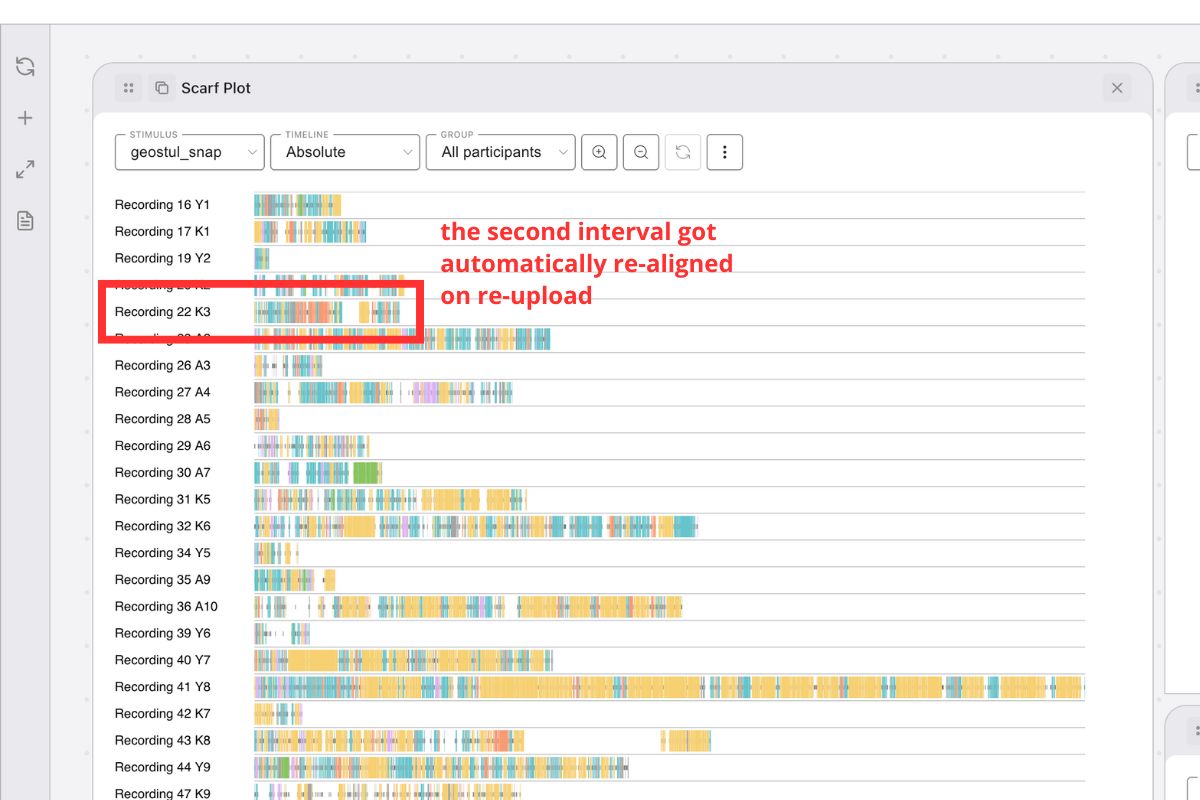
- Don’t recompute timestamps — GazePlotter renormalizes them on import. The first remaining segment of each Participant × Stimulus is reset to time
0. participantandstimulusmust always have a value.
Workflow 1: Crop the start of a recording
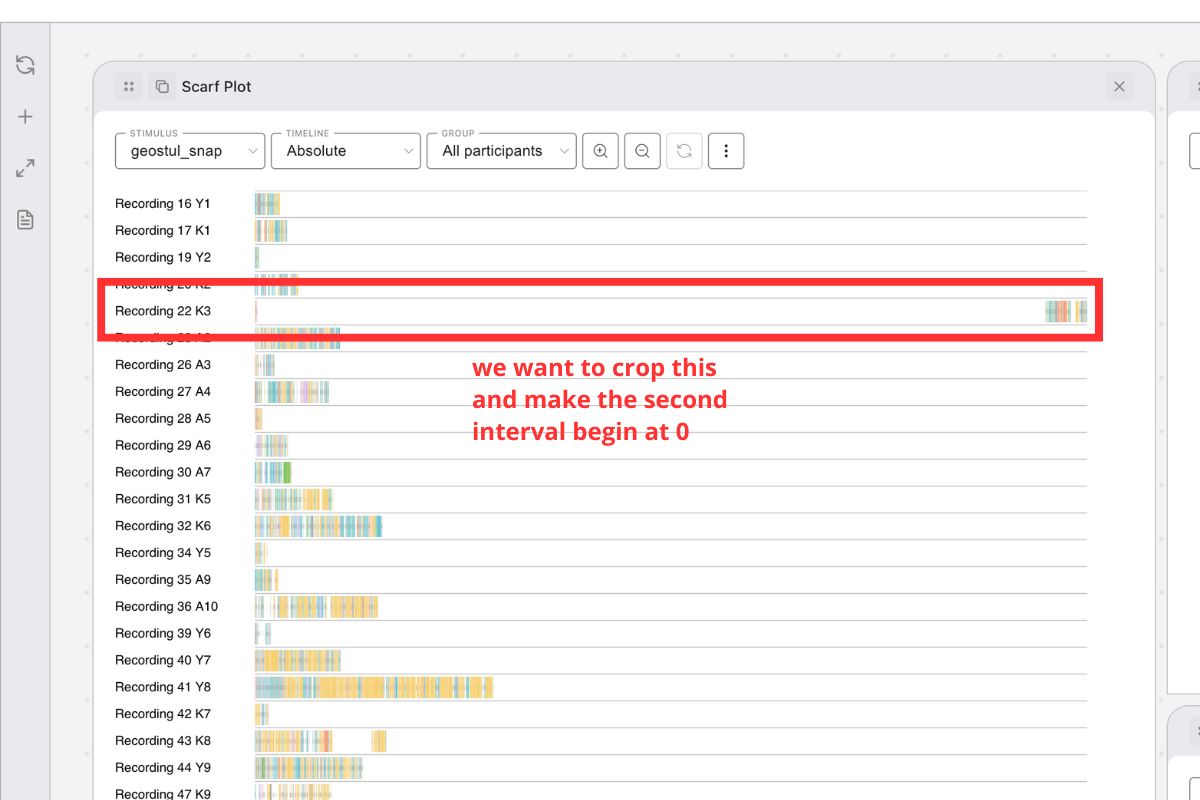
Mobile recordings often begin with calibration or instructions. Remove them:
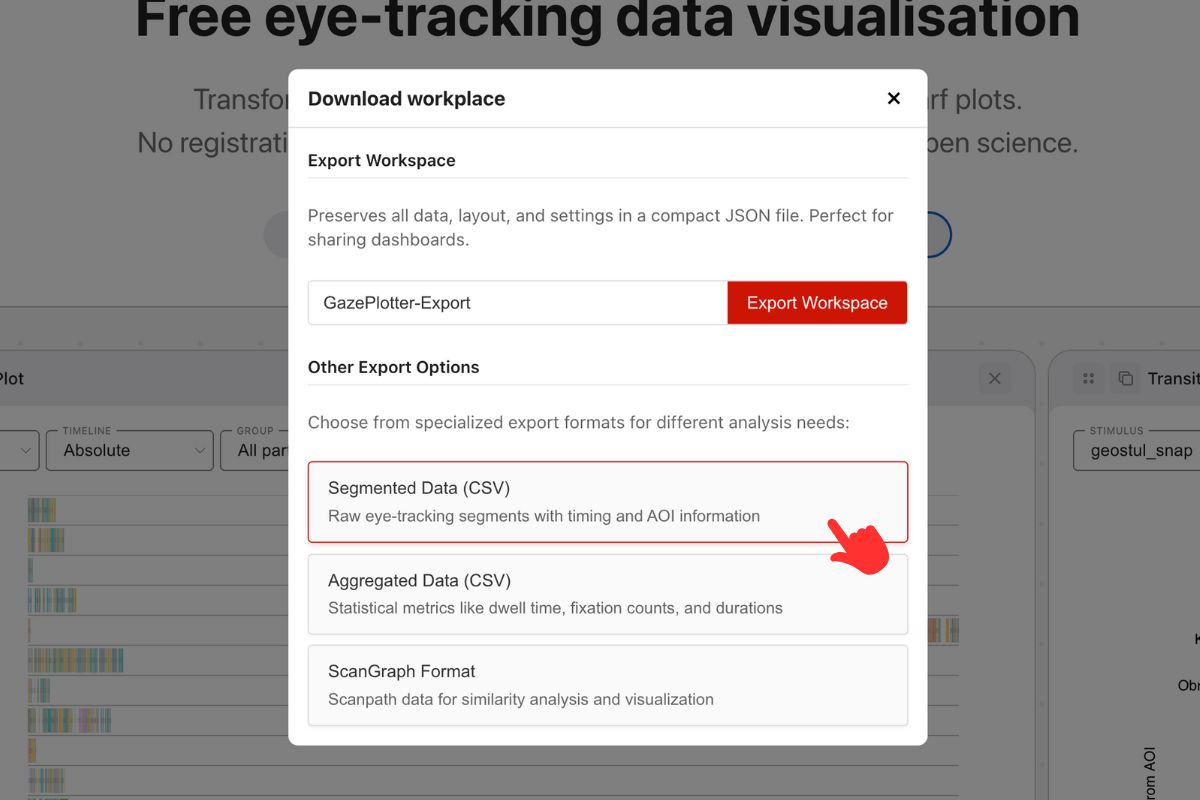
- Export segmented data as CSV.
- Open it in a spreadsheet or text editor.
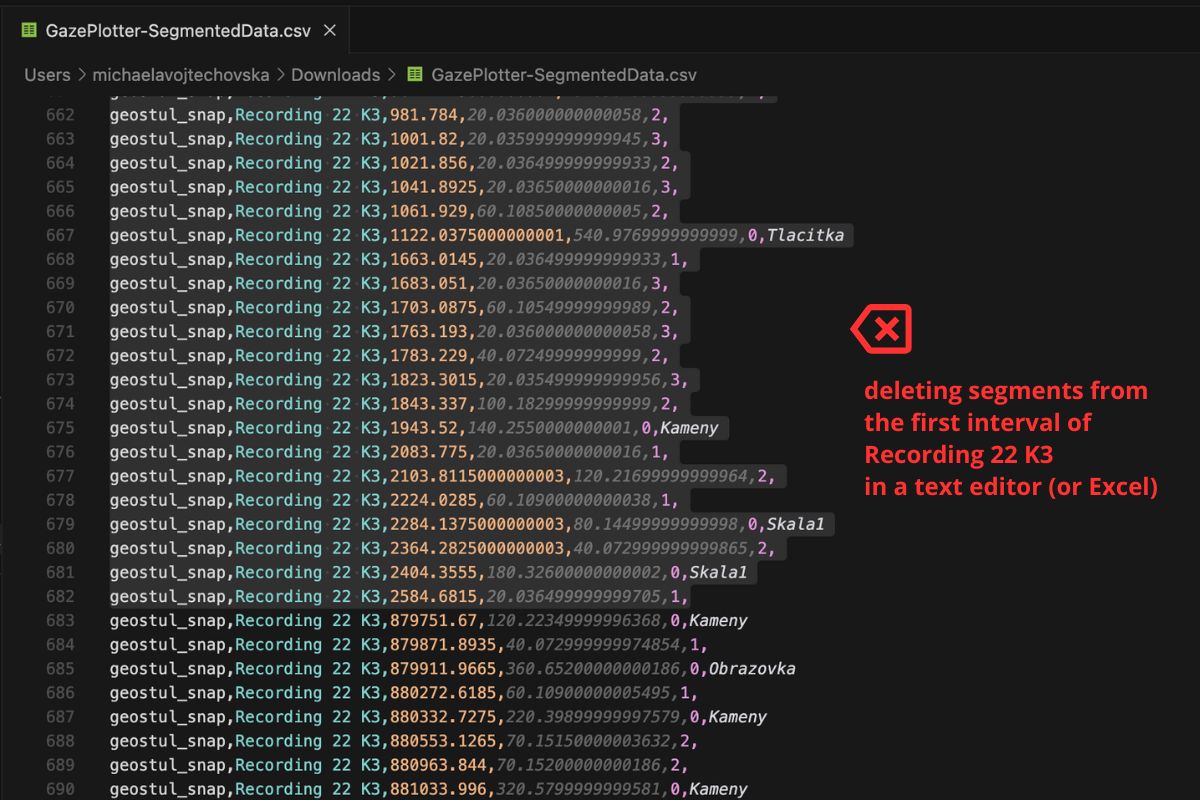
- For the Participant × Stimulus you want to trim, delete the early rows.
- Save as CSV and re-upload.
On import, the first remaining segment becomes the new 0 baseline.
Workflow 2: Split one recording into several stimuli
To break a long recording into separate phases:
- Export segmented data as CSV.
- Find the timestamps where phases change.
- Rename the
stimulusvalue per phase (e.g.Shopping_Task→Shopping_Selection,Shopping_Checkout,Shopping_Review). - Save as CSV and re-upload.
Each distinct stimulus name becomes an independent stimulus with its own 0 baseline.