
AOI Comparison
AOI Comparison in GazePlotter provides quantitative analysis of eye-tracking data through bar charts. It aggregates gaze metrics across Areas of Interest (AOIs) for statistical comparison and analysis.
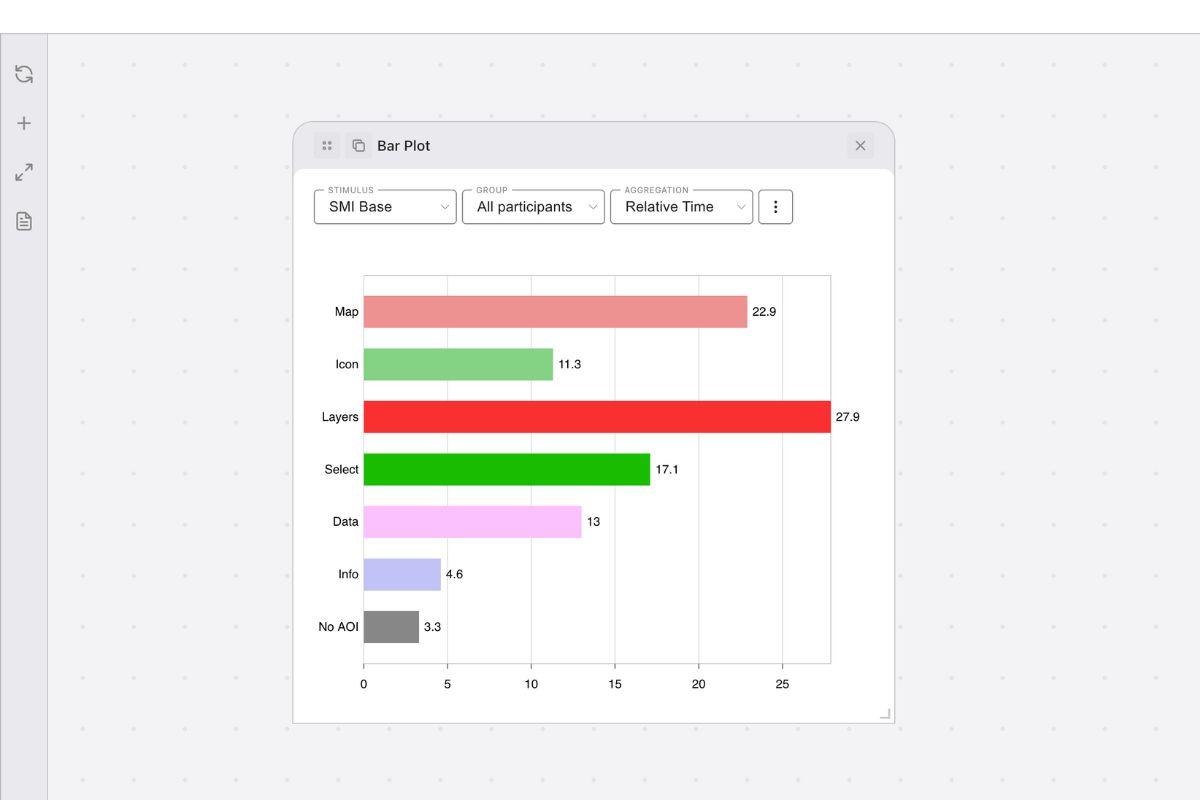
Plot Operations: For general canvas operations (moving, resizing, duplicating, or removing plots), see Plot Manipulation.
Metric Contract
To render an AOI Comparison plot, GazePlotter queries the workspace’s metric library. This visualization requires a metric configuration that satisfies the following contract:
- Output Shape:
aoi-vector(computes a value or distribution for each Area of Interest individually). - Windowing:
forbidden(calculated across the selected time range as a single aggregate).
Metrics Documentation: For details on how these raw metrics are calculated, see Dwell Time & Fixation Durations and Fixation Counts & Latency.
Configuration via Pane
Clicking the AOI Comparison plot card in the workspace selects the plot and opens its configuration options in the sidebar Pane (or bottom sheet on mobile). The settings are organized into the following collapsible sections:
Stimulus
Choose the stimulus to analyze. Each stimulus contains its own set of Areas of Interest (AOIs) which will be displayed as bars in the chart.
- Edit stimuli & selections…: Opens the Stimuli Library to manage stimulus files and build stimulus selections.
Participants
Filter the eye-tracking data by group or individual participant.
- Participant selection: A dropdown containing All, Non-empty, and saved participant selections.
- Edit participants & selections…: Opens the Participant Library to rename, merge, and build participant selections.
Metric
Configure the quantitative metric displayed on the value axis.
- Select metric: A dropdown of all metric instances in the library that satisfy the
aoi-vectorshape contract. Standard metrics include:- Time on AOI (
absoluteTime): Total duration spent looking within the boundary (see Durations). - Relative time on AOI (
relativeTime): Proportion of total time spent in each AOI (see Durations). - Visit count per AOI (
visitCount): Number of distinct entries into the boundary (see Counts & Latency). - Visit duration (
visitDuration): Average duration of visits (consecutive fixations) (see Durations). - Fixation count per AOI (
fixationCount): Number of fixations within the boundary (see Counts & Latency). - Average fixation duration (
fixationDuration): Mean length of individual fixations (see Durations). - Time to first fixation (
timeToFirstFixation): Average latency until initial entry (see Counts & Latency). - First fixation duration (
firstFixationDuration): Mean length of the first fixation (see Durations).
- Time on AOI (
- Edit metric library…: Opens the Metric Library modal where you can customize parameters or define entirely new custom metrics to calculate across the AOIs.
Visualisation
Configure the visual layout and rendering options for the bar chart.
- Statistical overlay: Render statistical summaries over the raw data bars:
- None: Shows only the mean bars.
- Mean ± 95% CI: Draws error bars showing the 95% Confidence Interval.
- Mean ± SD: Draws error bars showing the Standard Deviation.
- Boxplot: Overlays a standard box-and-whisker plot mapping the quartile distribution.
- Orientation: Select Horizontal (default) or Vertical bar layout.
- Order by: Sort bars by Value or by AOI order.
- Direction: Sort bars ascending (ASC) or descending (DESC).
- Scale range: Explicitly set the value axis minimum and maximum (0 = Auto).
Time range [ms]
Filter the temporal range from which fixations and saccades are fetched.
- Start: Limit the minimum time boundary (ms).
- End (0 = Auto): Limit the maximum time boundary (ms) or leave at 0 for automatic duration matching.
Areas of Interest
Filters which Areas of Interest (AOIs) are rendered in the bar chart.
- AOI selection: A dropdown containing All and saved AOI selections; AOIs outside the picked selection count as no-AOI in this plot.
- Hide No AOI data: Drops the No-AOI slot from the chart, so only the named AOIs are compared.
- Edit AOIs & selections…: Opens the AOI Library to customize names, colors, merges, and selections.
Export
Located at the bottom of the Pane:
- Download plot…: Opens the Figure Export dialog to save the bar plot as a PNG or JPG.
- Export Data: To export raw statistical values as CSV, see Metric Data Export.
Interpretation
Use AOI Comparison to:
- Compare AOI performance: Identify which areas attract most/least attention.
- Quantify differences: Obtain precise measurements rather than visual estimates.
- Perform group comparisons: Analyze how different participant groups behave comparative to each other.
- Conduct statistical analysis: Export exact computed metric values per participant for further processing.