
Bar Plot
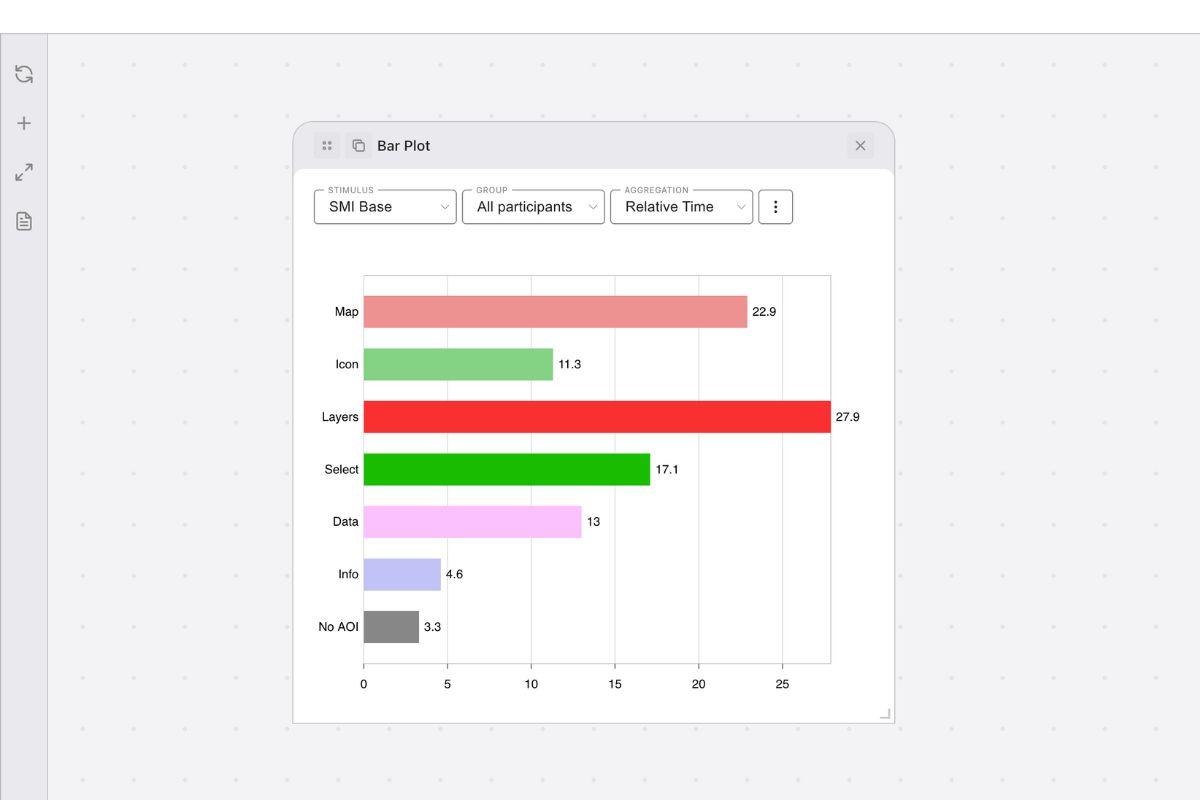
Bar Plot in GazePlotter provides quantitative analysis of eye-tracking data through bar charts. It aggregates gaze metrics across Areas of Interest (AOIs) for statistical comparison and analysis.
Interested on how to operate with plots in general within the workspace? See:
Overview
The Bar Plot visualization displays quantitative metrics for each AOI in your selected stimulus, allowing you to compare attention patterns, fixation durations, and other gaze measurements across different areas of interest.
Basic Controls
In GazePlotter, bar plots have the following main controls:
- Stimulus - a drop-down menu for selecting the stimulus to be analyzed.
- Group - a drop-down menu for selecting the participant group.
- View - a drop-down menu for selecting the data representation or aggregation method.
- More options (⋮) - a button for accessing additional customization and export options.
Stimulus
Choose which stimulus to analyze. Each stimulus contains its own set of AOIs that will be displayed as bars in the chart.
Group
Select participant groups:
- All participants - includes data from all participants
- Custom groups - analyze specific participant groups created in the grouping interface. See Participant Groups.
View
The View dropdown determines what metric is calculated and displayed. Clicking on a view option opens a settings dialog with customizable parameters for the plot.
Absolute times
Total time spent in each AOI across all participants, summing all fixation durations.
| Parameter | Description |
|---|---|
| Bar orientation | Choose whether bars are Horizontal (default) or Vertical |
| Order by | Control the bar sorting (by Value or by AOI order) |
| Direction | Sort bars ascending (ASC) or descending (DESC) |
| Scale range [ms] | Customize the value axis minimum and maximum (0 = Auto) |
| Calculated from Time Range [ms] | Limit the time bounds from which the metric is calculated (Start / End, where 0 = Auto) |
Relative times
Proportional time spent in each AOI as percentages of total viewing time.
| Parameter | Description |
|---|---|
| Bar orientation | Choose whether bars are Horizontal (default) or Vertical |
| Order by | Control the bar sorting (by Value or by AOI order) |
| Direction | Sort bars ascending (ASC) or descending (DESC) |
| Scale range [ms] | Customize the value axis minimum and maximum (0 = Auto) |
| Calculated from Time Range [ms] | Limit the time bounds from which the metric is calculated (Start / End, where 0 = Auto) |
Mean visits
Average number of distinct encounters participants had with each AOI.
| Parameter | Description |
|---|---|
| Bar orientation | Choose whether bars are Horizontal (default) or Vertical |
| Order by | Control the bar sorting (by Value or by AOI order) |
| Direction | Sort bars ascending (ASC) or descending (DESC) |
| Scale range [ms] | Customize the value axis minimum and maximum (0 = Auto) |
| Calculated from Time Range [ms] | Limit the time bounds from which the metric is calculated (Start / End, where 0 = Auto) |
Mean visit durations
Average duration of each visit (consecutive fixations) to each AOI.
| Parameter | Description |
|---|---|
| Bar orientation | Choose whether bars are Horizontal (default) or Vertical |
| Order by | Control the bar sorting (by Value or by AOI order) |
| Direction | Sort bars ascending (ASC) or descending (DESC) |
| Scale range [ms] | Customize the value axis minimum and maximum (0 = Auto) |
| Calculated from Time Range [ms] | Limit the time bounds from which the metric is calculated (Start / End, where 0 = Auto) |
Mean fixation counts
Average number of separate fixations per participant for each AOI.
| Parameter | Description |
|---|---|
| Bar orientation | Choose whether bars are Horizontal (default) or Vertical |
| Order by | Control the bar sorting (by Value or by AOI order) |
| Direction | Sort bars ascending (ASC) or descending (DESC) |
| Scale range [ms] | Customize the value axis minimum and maximum (0 = Auto) |
| Calculated from Time Range [ms] | Limit the time bounds from which the metric is calculated (Start / End, where 0 = Auto) |
Mean fixation durations
Average length of all individual fixations within each AOI across participants.
| Parameter | Description |
|---|---|
| Bar orientation | Choose whether bars are Horizontal (default) or Vertical |
| Order by | Control the bar sorting (by Value or by AOI order) |
| Direction | Sort bars ascending (ASC) or descending (DESC) |
| Scale range [ms] | Customize the value axis minimum and maximum (0 = Auto) |
| Calculated from Time Range [ms] | Limit the time bounds from which the metric is calculated (Start / End, where 0 = Auto) |
Mean times to first fixation
Average time when participants first looked at each AOI (from stimulus start).
| Parameter | Description |
|---|---|
| Bar orientation | Choose whether bars are Horizontal (default) or Vertical |
| Order by | Control the bar sorting (by Value or by AOI order) |
| Direction | Sort bars ascending (ASC) or descending (DESC) |
| Scale range [ms] | Customize the value axis minimum and maximum (0 = Auto) |
| Calculated from Time Range [ms] | Limit the time bounds from which the metric is calculated (Start / End, where 0 = Auto) |
Mean first fixation durations
Average duration of the very first fixation each participant made on each AOI.
| Parameter | Description |
|---|---|
| Bar orientation | Choose whether bars are Horizontal (default) or Vertical |
| Order by | Control the bar sorting (by Value or by AOI order) |
| Direction | Sort bars ascending (ASC) or descending (DESC) |
| Scale range [ms] | Customize the value axis minimum and maximum (0 = Auto) |
| Calculated from Time Range [ms] | Limit the time bounds from which the metric is calculated (Start / End, where 0 = Auto) |
Hit ratios (seen)
Percentage of participants who looked at each AOI at least once.
| Parameter | Description |
|---|---|
| Bar orientation | Choose whether bars are Horizontal (default) or Vertical |
| Order by | Control the bar sorting (by Value or by AOI order) |
| Direction | Sort bars ascending (ASC) or descending (DESC) |
| Scale range [ms] | Customize the value axis minimum and maximum (0 = Auto) |
| Calculated from Time Range [ms] | Limit the time bounds from which the metric is calculated (Start / End, where 0 = Auto) |
More options
The bar plot menu (⋮) provides quick access to customization and specific features:
Customization Options
- AOI customization - Modify colors, names, and order of Areas of Interest. See AOI Customization for details.
- Stimulus customization - Manage stimulus properties and settings. See Stimuli Customization for details.
- Setup participants groups - Create and modify participant groups for comparative analysis. See Participant Groups for details.
Download plot
Export individual bar plots as image files:
- File formats: PNG (recommended) or JPG
- Dimensions: Customizable width (height calculated automatically at 5:3 aspect ratio)
- Quality: Adjustable DPI setting for print or web use
- Margins: Configurable top, right, bottom, left margins
- Preview: Live preview of your exported plot before downloading
Export Data
Export the calculated statistical data for external analysis.
This provides access to all computed eye-tracking metrics (absolute time, relative time, fixation counts, etc.) in CSV format for analysis in R, Python, SPSS, or other statistical software. For detailed information about data export options and formats, see Aggregated Data Export.
Interpretation
Use Bar Plot to:
- Compare AOI performance - identify which areas attract most/least attention
- Quantify differences - get precise measurements rather than visual estimates
- Group comparisons - analyze how different participant groups behave
- Statistical analysis - export exact values for further statistical processing