
Stimuli Customization
Stimuli Customization in GazePlotter provides a robust mechanism to rename stimuli and reorder their sequence within all eye-tracking plots. The tool supports granular item-by-item editing as well as powerful, regex-driven pattern renaming for massive batch operations.
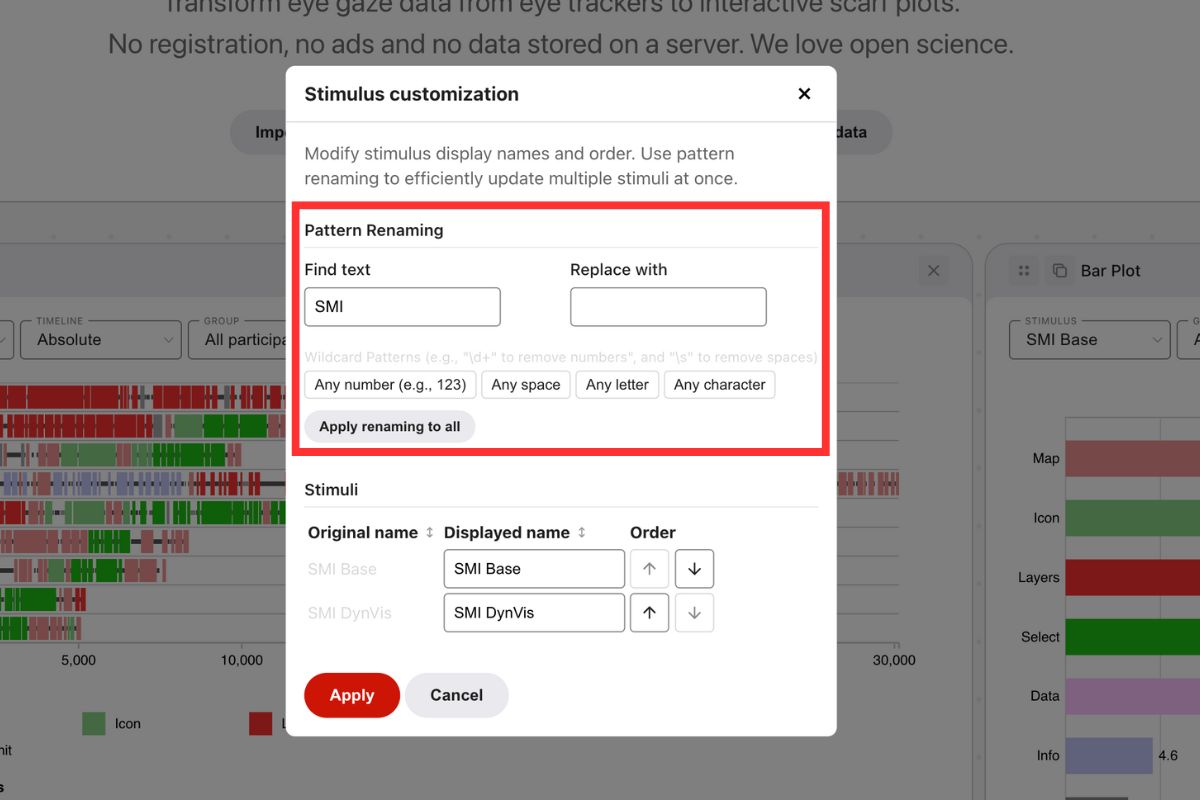
Accessing the Tool
To customize your target stimuli:
- Click the More options button positioned in the top right corner of any visible plot.
- Select Stimulus customization from the contextual pop-up menu.
Modifying Stimuli
For manual adjustments and specific organizational tasks, use the individual editing table.
Individual Operations
Renaming
- Action: Modify the text field in the Displayed name column.
- Behavior: Updates the visual label used in all drop-downs and plots, while securely leaving the original source name intact within the raw dataset.
Reordering
- Action: Click the up and down arrows located in the Order column.
- Behavior: Adjusts the index rendering order of the stimulus. This dictates their sequential appearance in global dropdowns and menus.
Bulk Sorting Actions
To quickly organize the configuration list, utilize the column header controls:
- Original Name: Sorts the list alphanumerically based on the raw stimulus names imported from the source data.
- Displayed Name: Sorts the list alphanumerically based on the currently customized displayed names.
Note: Clicking the same header multiple times toggles between ascending and descending sort directions. The algorithm strictly utilizes natural ordering (e.g., Stimulus_2 correctly precedes Stimulus_10).
Pattern Renaming (Batch Processing)
For high-volume datasets containing systemic naming flaws, Pattern Renaming enables global find-and-replace mechanics powered by Regular Expressions (Regex).
Execution Workflow
- Targeting: Input the target text or regex pattern into the Find text parameter field.
- Replacement: Input the desired replacement string into the Replace with parameter field.
- Execution: Click the Apply renaming to all button to instantly compute and map the transformations.
Quick Wildcard Insertions
For users unfamiliar with writing regex, pre-configured buttons automatically insert common wildcard patterns directly into the targeting field:
- Any number: Inserts
\d+— Matches any contiguous sequence of digits (e.g., 1, 42, 1024). - Any space: Inserts
\s— Matches any single whitespace character. - Any letter: Inserts
[A-Za-z]— Matches any single alphabetical character, irrespective of case. - Any character: Inserts
.— Matches absolutely any single character (except line breaks).
Practical Applications
Basic Cleanup
- Strip numerical suffixes: Find
\d+, Replace with(empty) - Condense spacing: Find
\s, Replace with(empty) - Standardize delimitations: Find
_, Replace with- - Abbreviate terminology: Find
Stimulus, Replace withS
Advanced Regex Combinations
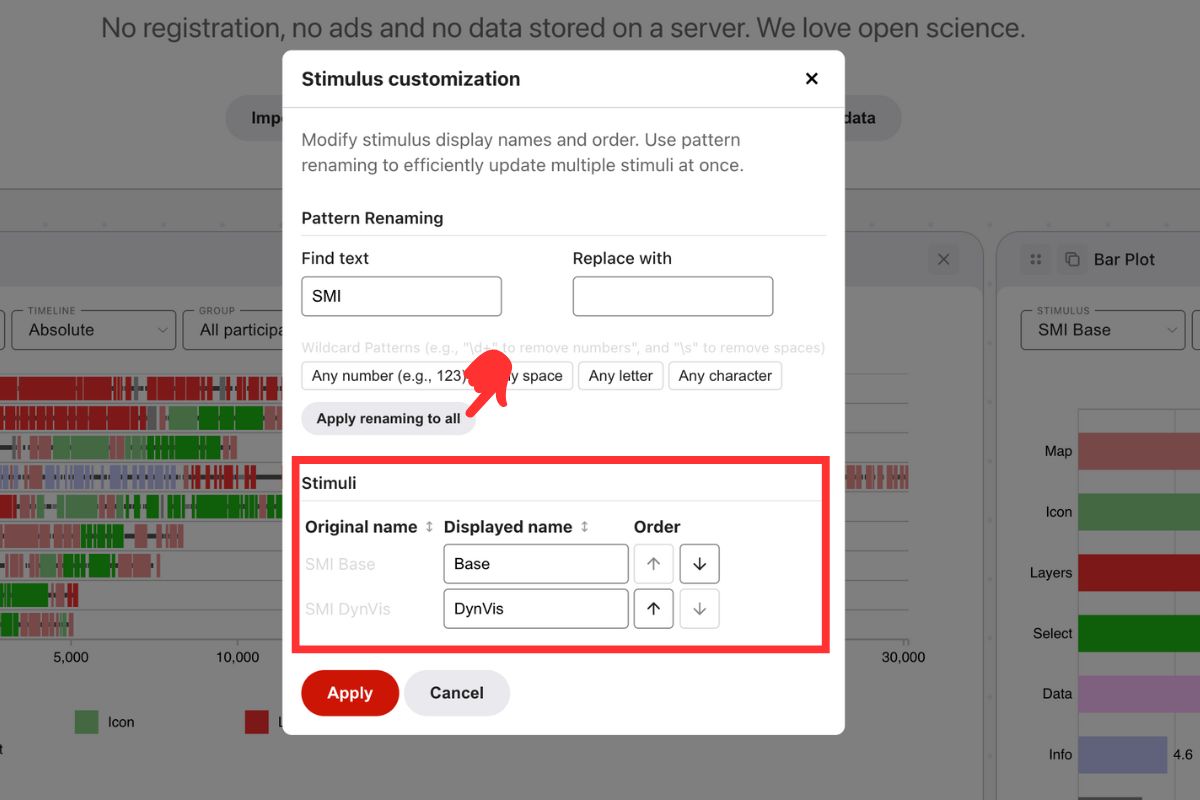
A complex transformation example involving multiple regex concepts.
Objective: Mutate the string SMI Base to output Base.
- Find text:
SMI\s - Replace with:
(empty) - Result:
SMI Base→Base
Deconstruction:
SMI: Targets the literal text string “SMI”.\s: Targets the immediate trailing space character following the string.
Regex Assistance
GazePlotter’s engine processes pure regular expressions. Because the regex syntax is completely standard, you can utilize external LLM tools (like ChatGPT or Claude) to reliably generate complex extraction patterns by describing your exact transformation parameters.
Committing Changes
- Finalize: Click the Apply button located at the bottom of the module to save all semantic modifications globally.
- Discard: Closing the modal window without clicking Apply will safely terminate your session and discard all pending edits.