
Participants Customization
Participants Customization in GazePlotter offers a comprehensive interface to semantically rename participants and dictate their global rendering order across all relevant eye-tracking plots. The tool provides granular row-level editing combined with a powerful, deterministic regex-based batch processing engine.
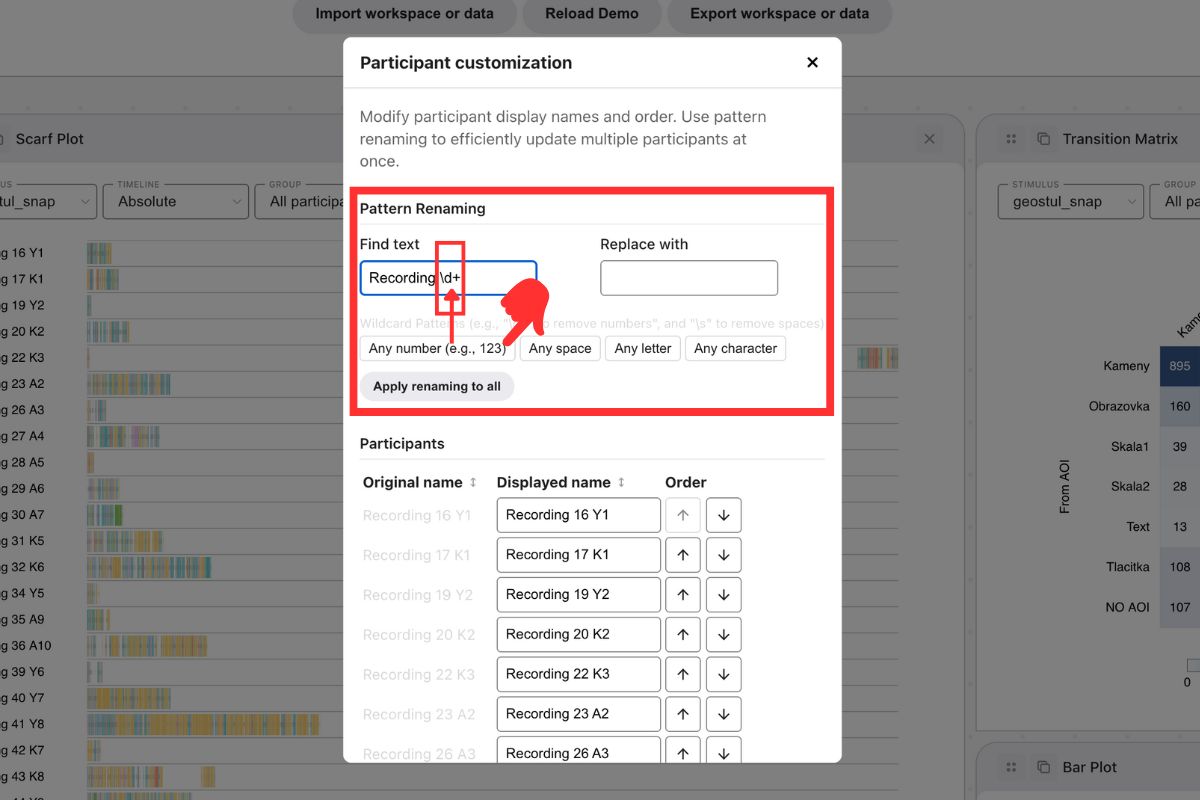
Accessing the Tool
To customize your analysis participants:
- Click the More options button positioned in the top right corner of any visible plot.
- Select Participant customization from the contextual pop-up menu.
Modifying Participants
For specific, targeted adjustments to individual subjects, utilize the primary editing table.
Individual Operations
Renaming
- Action: Modify the text field placed in the Displayed name column.
- Behavior: Directly overrides the visual label output in all legends, axes, and grouping menus without permanently altering the underlying raw dataset architecture.
Reordering
- Action: Click the up and down arrows situated in the Order column.
- Behavior: Adjusts the global index rendering order of the participant. This order directly dictates their sequential baseline appearance from top-to-bottom or left-to-right in all visualizations.
Bulk Sorting Actions
To quickly structure large participant pools, click directly on the column header labels:
- Original Name: Sorts alphanumerically based on the raw participant strings ingested from the source files.
- Displayed Name: Sorts alphanumerically based on your currently applied semantic labels.
Note: Clicking a header successively toggles between ascending and descending logic. The sorting engine utilizes natural alphanumeric ordering, ensuring that Participant_2 correctly precedes Participant_10.
Pattern Renaming (Batch Processing)
For datasets consisting of dozens or hundreds of subjects with systemic naming errors or unwanted metadata, Pattern Renaming provides a global find-and-replace mechanism driven by Regular Expressions (Regex).
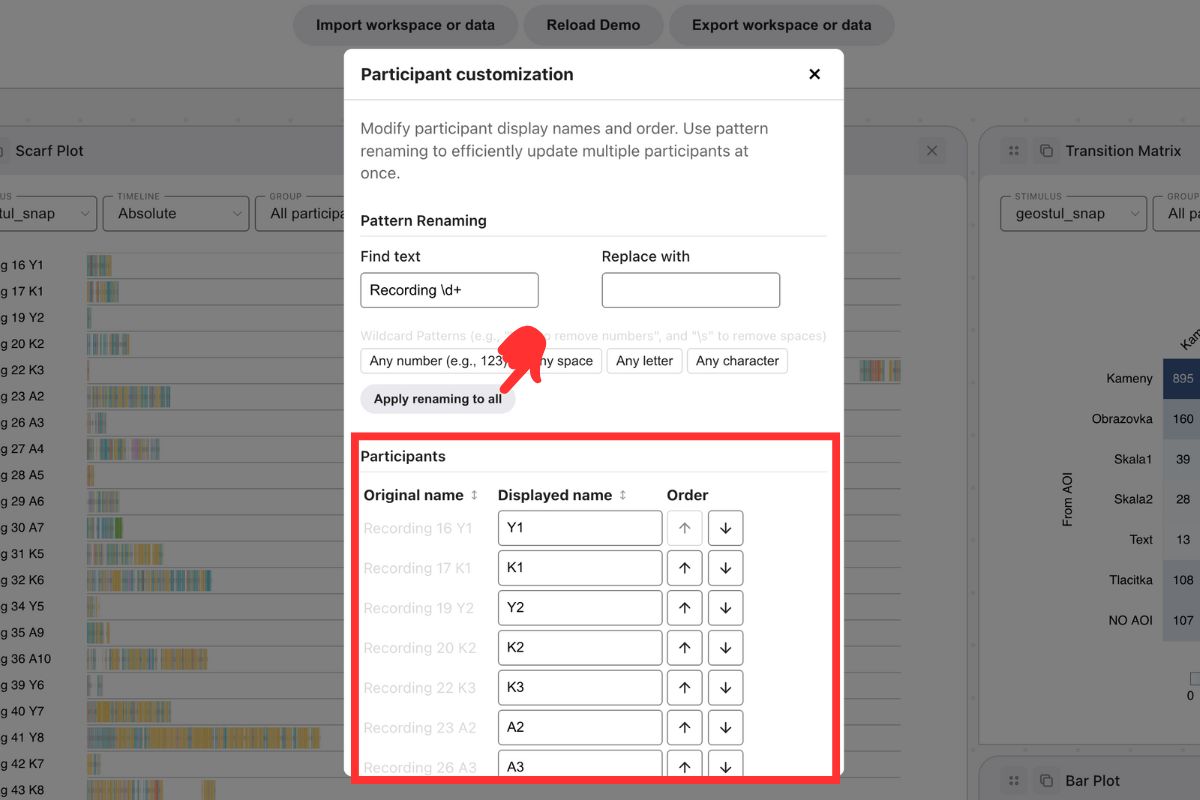
Execution Workflow
- Targeting: Input the target text or strict regex pattern into the Find text parameter field.
- Replacement: Input the finalized replacement string into the Replace with parameter field.
- Execution: Click the Apply renaming to all button to instantly map the transformations across the entire participant array.
Quick Wildcard Insertions
Pre-configured macro buttons are available to automatically append standard wildcard patterns into the targeting field:
- Any number: Appends
\d+— Matches any contiguous sequence of digits (e.g., 1, 42, 1024). - Any space: Appends
\s— Matches any isolated whitespace character. - Any letter: Appends
[A-Za-z]— Matches any single alphabetical character. - Any character: Appends
.— Matches absolutely any generic character entity.
Practical Applications
Basic Iterations
- Strip prefixes: Find
Participant, Replace withP - Strip auto-generated spacing: Find
\s, Replace with(empty) - Remove file extensions: Find
.tsv, Replace with(empty) - Standardize terminology: Find
_, Replace with-
Advanced Regex Combinations
A complex transformation mapping multiple regex components in sequence.
Objective: Mutate the verbose string Recording34 P20 exclusively down to P20.
- Find text:
Recording\d+\s - Replace with:
(empty) - Result:
Recording34 P20→P20
Deconstruction:
Recording: Targets the exact literal string.\d+: Captures the dynamic, variable numerical sequence attached to the string (e.g., 34).\s: Captures the explicit blank space delimiting the two segments.
Regex Assistance
The processing engine strictly interprets standard regular expressions. For intricate pattern isolation routines, it is highly recommended to offload the pattern generation to external AI models by describing your raw string formats and your ideal output state.
Committing Changes
- Finalize: Click the Apply button to commit all structural modifications to the workspace engine.
- Discard: Exiting the modal component entirely without depressing the Apply button immediately discards all pending session updates.